Billion Connect: Compatible Devices and Technical Limits
11/20/2026
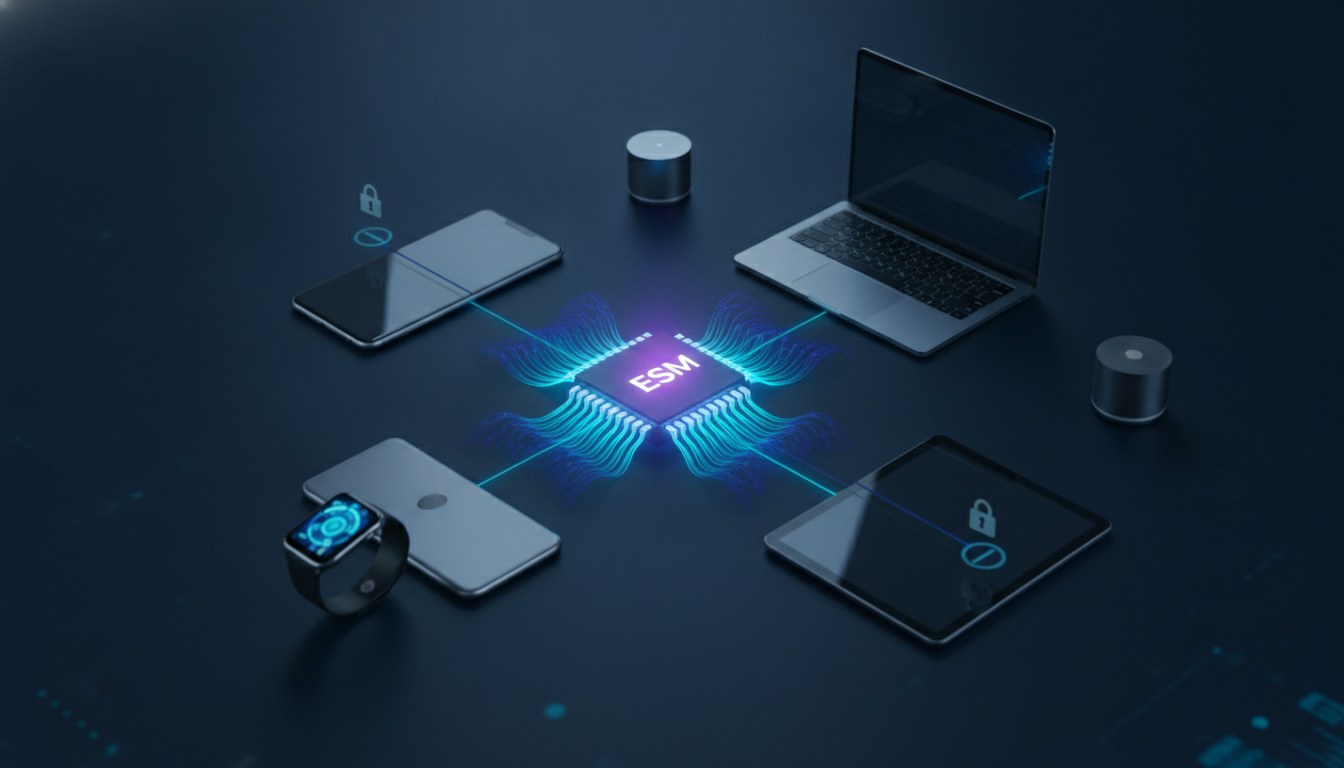
Billion Connect eSIMs work only on devices with an enabled eSIM module, an unlocked cellular modem, and carrier support for the required network bands. Compatible examples include newer iPhones, selected Samsung Galaxy and Google Pixel models, and some cellular iPads and Windows laptops; Wi-Fi-only tablets and carrier-locked devices cannot activate the plan.
| Device category | Compatibility checkpoint | Common limitation |
|---|---|---|
| iPhone | Apple eSIM-capable model with iOS support and an unlocked device | Regional variants may omit eSIM |
| Samsung Galaxy | Galaxy model and country variant must support eSIM | Some regional Galaxy versions are physical-SIM only |
| Google Pixel | Pixel model with eSIM hardware and supported software | Older or carrier-specific versions may be restricted |
| iPad | Cellular iPad, not Wi-Fi-only | The iPad must have an embedded SIM function |
| Windows laptop | Cellular model with an eSIM-capable modem | Wi-Fi-only laptops cannot use a mobile data eSIM |
| Android tablet | Cellular tablet with eSIM support | Android eSIM menus vary by manufacturer |
Which devices can use a Billion Connect eSIM?
“Billion Connect” refers to a travel eSIM service, not a universal software feature. The deciding component is the device’s embedded Universal Integrated Circuit Card, commonly called an eUICC.
GSMA’s Remote SIM Provisioning Specification SGP.22 defines how a consumer eSIM profile is downloaded and managed; it does not make every phone compatible.
iPhone compatibility
Apple introduced eSIM support with the iPhone XS, iPhone XS Max, and iPhone XR, released in 2018. Later iPhone families generally support eSIM, but the exact capability depends on the model number and sales region.
Check these points before buying:
- The iPhone must not be carrier-locked.
- The model must include eSIM hardware.
- iOS must be recent enough to display the mobile-plan installation controls.
- The phone must have Wi-Fi or another internet connection during profile download.
- The device must support the cellular bands used by the Billion Connect roaming partner.
A regional variant matters more than the name printed on the phone. For example, an iPhone model sold in a market where physical SIM use is prioritized may have different SIM behavior from an otherwise similar international version.
I always start by checking Settings → General → About and looking for an EID. An EID is the device identifier associated with the eSIM component; if the phone has no EID, a Billion Connect QR code cannot install on it.
The practical trap is scanning the QR code from the same phone that displays it. When the QR code is inside an email or account page on the handset, the camera cannot scan its own screen.
Open it on another device, use the carrier’s installation link if offered, or enter the activation details manually.
Samsung Galaxy, Google Pixel, and other Android phones
Samsung Galaxy and Google Pixel phones often support eSIM, but Android compatibility is particularly dependent on the country version and carrier firmware.
Google’s Pixel 3 introduced eSIM capability in supported markets, while current Pixel generations normally provide an EID and an “Add SIM” control. Samsung’s support documentation lists eSIM on selected Galaxy S, Z, and Note models, but a Galaxy S-series name alone is not proof of compatibility.
Some regional models contain the same processor and display as an eSIM-capable version while omitting the eUICC.
On Android, look for one of these paths:
- Open Settings.
- Select Network & internet, Connections, or SIM manager, depending on the manufacturer.
- Choose Add eSIM, Add mobile plan, or Download a SIM instead.
- Confirm that the phone displays an EID or an eSIM download option.
If none of those controls exists, do not assume a software update will create them. The eUICC is hardware.
A firmware update can expose a disabled menu on an eligible device, but it cannot add an absent eSIM chip.
Tablets and laptops have stricter limitations
Cellular iPads and Android tablets
A cellular iPad can use a travel eSIM, but a Wi-Fi-only iPad cannot. Apple’s cellular product designation is therefore more important than the iPad family name.
In Settings → General → About, an EID is a useful confirmation; in Settings → Cellular Data, an option to add a cellular plan is the operational check.
The iPad’s eSIM is normally used for data rather than ordinary voice calling. That means a Billion Connect data plan can provide internet access for navigation, messaging, or tethering where the plan permits it, but it does not automatically provide a telephone number or traditional SMS service.
The same distinction applies to Android tablets. A tablet may have a SIM tray yet lack eSIM support, or it may support eSIM only on selected regional versions.
Check the manufacturer’s model code rather than relying on the product family name.
A field-level warning: if the tablet is managed by a school, employer, or mobile-device-management profile, the administrator can restrict cellular-plan installation. The eSIM hardware may be present, but the installation command is blocked by policy, producing what looks like a provider failure.
Windows laptops and mobile hotspots
Windows laptops can use an eSIM only when they include a cellular modem. Microsoft’s Windows 10 and Windows 11 support cellular-plan management on compatible hardware, but the operating system does not turn a Wi-Fi-only laptop into a cellular device.
In Windows, open Settings → Network & internet → Cellular. If the computer has a supported modem and eSIM capability, you may see an option such as Add eSIM profile.
The manufacturer’s specifications should identify WWAN, LTE, 4G, 5G, or eSIM support.
Mobile hotspots are more complicated. Some accept a physical SIM only, while others include an eUICC and support remote profile downloads.
A Billion Connect QR code cannot be installed merely because the hotspot broadcasts Wi-Fi. The hotspot must expose an eSIM management interface and accept the profile format.
The modem’s radio bands also matter. A profile can install successfully while data fails because the laptop or hotspot lacks a band used by the local roaming network.
That is a radio-compatibility problem, not an activation problem.
The technical checks that decide activation
Before purchase, I would check the device in this order:
- Confirm the EID. On Apple devices, Android phones, and many Windows machines, search the About screen for “EID.” No EID usually means no eSIM.
- Check the SIM-lock status. On iPhone, Apple shows this under Settings → General → About → Carrier Lock. “No SIM restrictions” is the useful result. Android wording varies by carrier.
- Verify the model and region. Use the complete model code, not only “Galaxy S23” or “iPad Pro.”
- Check cellular bands. Compare the device specifications with the networks available for the destination plan.
- Install while connected. Profile delivery requires internet access. Wi-Fi is the safest route.
- Set the data line deliberately. Choose Billion Connect as the mobile-data SIM and disable automatic data switching if the home SIM could trigger roaming charges.
The most expensive mistake is leaving the home SIM selected for mobile data after installation. The Billion Connect profile may appear active, yet the phone continues using the original operator.
I always verify the active data line and turn off data roaming on the primary SIM before testing a webpage.
For general guidance on evaluating eSIM compatibility across providers, the eSIM comparison guide is useful when the device is eligible but the network coverage or plan structure is unclear.
What prevents a working profile from becoming usable?
Installation and service are separate stages. A QR code can download correctly and still fail to deliver data because the profile is not selected, the access point name is wrong, or roaming is disabled.
Common failure points include:
- Carrier lock: the device rejects a second operator’s profile.
- Missing eUICC: the device has only a physical SIM interface.
- Incorrect APN: the profile installs, but the data session cannot authenticate.
- Disabled data roaming: travel eSIMs often require roaming to be enabled on that line.
- Unsupported bands: the device cannot attach to the partner network.
- Full eSIM storage: some phones limit the number of stored profiles, even when only one can be active.
- No activation internet: the profile cannot download during the initial setup.
- Dual-SIM settings: the phone may keep the home line as the default data connection.
The APN is especially easy to misread. On Android, a manually entered APN must match the provider’s instructions exactly; an extra space or wrong capitalization can prevent registration.
On iPhone, the APN fields may be hidden because the carrier profile controls them. I would not change APN values randomly: the wrong entry can replace a working automatic configuration.
If the Billion Connect profile shows signal bars but no internet, first select it as the data line, enable data roaming for that line, and restart the device. If the signal remains absent, check the destination coverage and supported bands before deleting the profile.
Deleting an eSIM can remove the local installation without restoring the activation allowance.
For installation troubleshooting and account-related questions, the Billion Connect support center is the appropriate place to verify the provider’s current activation instructions. Keep the order details and device EID available, but never publish the full EID or QR code in a public support request.
If the phone is compatible but the plan still will not register, test with Wi-Fi disabled only after the profile is installed, confirm that airplane mode is off, and select the network manually when automatic registration repeatedly fails. A successful activation is not proved by seeing the eSIM listed; it is proved when the Billion Connect line is selected for data and a test connection works without the home SIM carrying the traffic.
FAQ
Which iPhones are compatible with Billion Connect eSIM?
Billion Connect eSIMs generally work with iPhone XS, iPhone XS Max, iPhone XR, and newer compatible models. The device must be unlocked, include an eSIM component, run supported iOS software, and connect to Wi-Fi during installation. Regional versions may differ, so verify the EID and complete model details first.
Can Samsung Galaxy phones activate Billion Connect eSIMs?
Selected Samsung Galaxy S, Z, and Note models can activate Billion Connect eSIMs, but compatibility depends on the exact country variant and carrier firmware. Open the SIM manager and look for an “Add eSIM” option or EID. Some regional Galaxy versions lack eSIM hardware despite sharing the same commercial model name.
Do iPads and Android tablets support Billion Connect?
Cellular iPads and certain Android tablets can use Billion Connect data eSIMs, while Wi-Fi-only models cannot. Check for an EID and an option to add a cellular plan. Tablet eSIM support varies by model and region, and managed devices may block installation through school or workplace administration policies.
Can Windows laptops use a Billion Connect eSIM?
A Windows laptop can use Billion Connect only if it has a cellular modem with eSIM capability. Check the specifications for WWAN, LTE, 4G, 5G, or eSIM support, then open Settings, Network & internet, and Cellular. Wi-Fi-only laptops cannot install a mobile data profile, regardless of Windows version.
Why might a compatible Billion Connect eSIM have no data?
A successfully installed profile may still lack data if Billion Connect is not selected as the active data line, roaming is disabled, or the APN is incorrect. Check destination coverage and network bands, restart the device, and avoid deleting the profile until the provider confirms that reinstallation is safe.

Marcus Bennett
Marcus is a travel and tech writer who has tested eSIMs and data plans across dozens of countries. At eSIM Promo Codes he tracks down the best working coupons and explains how to stay online abroad without falling into the roaming trap.