How to Test an eSIM Qr Code for Activation in 2026
6/28/2026
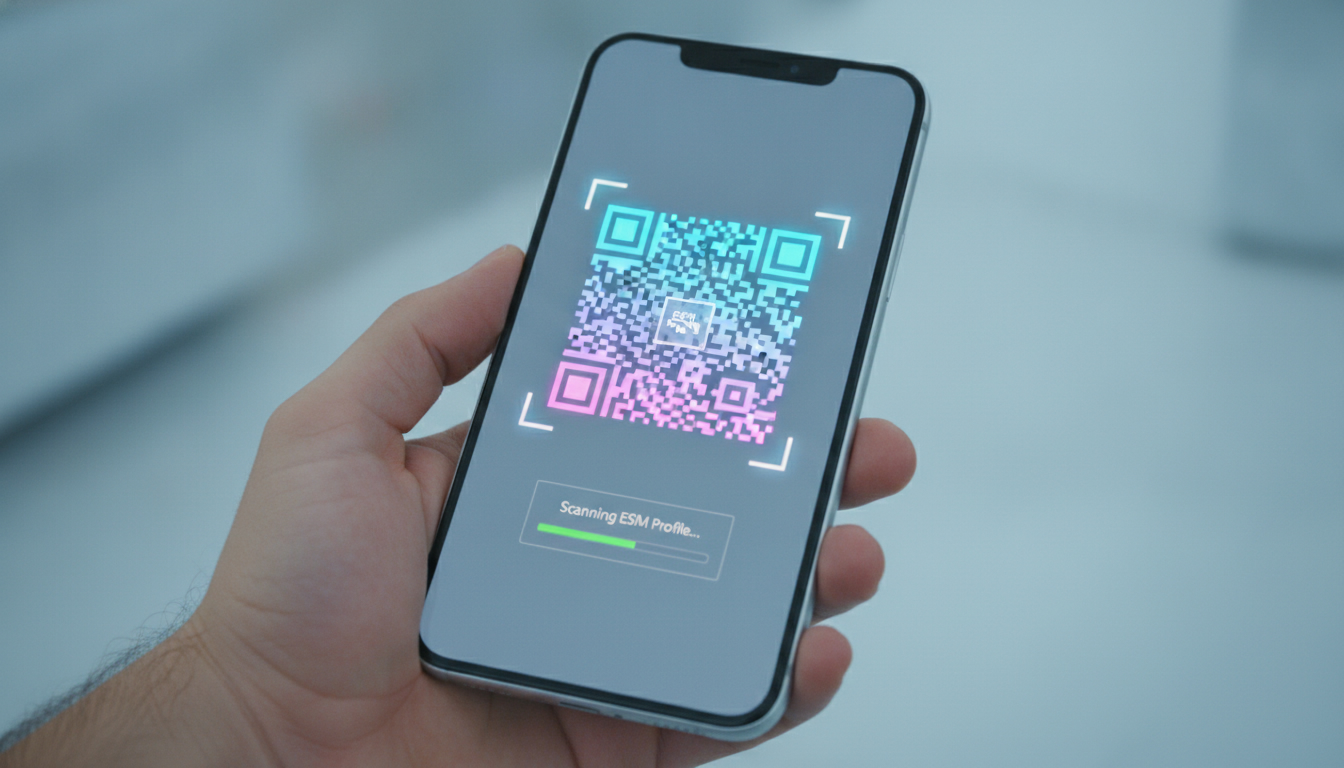
In short, what you'll discover in this article: Learn how to test your eSIM QR code safely and effectively before activation. Follow easy scanning steps, troubleshoot common issues, and ensure your eSIM works perfectly on your new phone.
1. Introduction — What Is an eSIM and How Does an Activation QR Code Work?
An eSIM (embedded SIM) is a digital SIM that allows you to activate a cellular plan without a physical card. Instead of inserting a physical SIM, you scan a secure QR code provided by your carrier to download your eSIM profile directly to your device.
The eSIM QR code contains encrypted data that links your phone to your mobile operator’s network. Once scanned, it initiates the download and activation of your cellular plan, enabling connectivity without swapping SIM cards.
2. Why Test an eSIM via QR?
Testing the eSIM QR code before fully switching over is crucial for a smooth transition.
2.1 Advantages of a Preliminary Test
- Ensures the QR code is valid and not expired.
- Confirms compatibility with your device.
- Prevents unexpected connectivity issues.
- Saves time by avoiding multiple customer service calls.
2.2 Situations Where Testing Is Essential (Travel, Carrier Switch)
- When traveling internationally and using local eSIM plans.
- Switching carriers or upgrading to an eSIM-compatible phone.
- Avoiding roaming charges by confirming local network access.
- Preparing for remote work or extended trips where reliable data is critical.
3. Prerequisites Before Starting the Test
Before scanning your eSIM QR code, prepare the following:
3.1 Verify Device Compatibility (Model and OS Version)
Make sure your phone supports eSIM technology. Most recent iPhones (XS and later) and many Android devices like Samsung Galaxy S20+ support eSIMs.
Also, check that your operating system is updated to the latest version for smooth activation.
3.2 Backups and Precautions (Physical SIM, Data, Accounts)
- Backup important contacts and data.
- Keep your physical SIM card handy in case you need to revert.
- Log out of sensitive accounts if you plan to reset network settings.
3.3 Required Connections (Wi-Fi, Temporary Data)
A stable Wi-Fi connection or temporary mobile data is necessary to download the eSIM profile after scanning the QR code.
4. Step-by-Step Guide to Testing an eSIM with a QR Code
4.1 Scanning the QR — Best Practices (Photo/Print, Lighting, Security)
- Use a clear, high-resolution image or printed version of the QR code.
- Ensure good lighting to avoid blurry scans.
- Only scan QR codes from trusted sources like your carrier or official apps.
- Avoid public Wi-Fi when scanning sensitive activation codes for security reasons.
4.2 Detailed Procedure for iPhone (iOS Steps)
- Open Settings > Cellular > Add Cellular Plan.
- Use your camera to scan the eSIM QR code.
- Follow on-screen prompts to confirm activation.
- Label your plan if prompted for easier management.
- Restart your phone if necessary to finalize setup.
4.3 Detailed Procedure for Android (Manufacturer Variants)
Steps may vary slightly depending on manufacturer:
-
For most Android phones:
- Go to Settings > Network & Internet > Mobile Network > Advanced > Carrier > Add Carrier.
- Scan the QR code using the camera.
- Confirm installation and wait for profile download.
-
Some brands like Samsung may have specific menus under Connections > SIM card manager.
4.4 Example with a Specific Smartphone (Samsung Galaxy)
On Samsung Galaxy devices:
- Open Settings > Connections > SIM card manager.
- Tap Add mobile plan.
- Scan the provided QR code using the camera app inside the menu.
- Follow prompts to activate and assign default lines for calls/data.
5. How to Verify That Your eSIM Is Activated Correctly
5.1 Test Data Connection
Open a browser or app requiring internet access to confirm cellular data works without Wi-Fi.
5.2 Test Calls and SMS
Make a test call or send an SMS to verify voice services are active on the new line.
5.3 Check APN Settings and Roaming Priorities
Ensure Access Point Name (APN) settings match those provided by your carrier for proper internet access and MMS functionality.
6. Troubleshooting — Common Errors and Solutions
6.1 QR Not Recognized / Blurry Image
- Retake or print a clearer version of the QR code.
- Use official carrier apps that can scan stored images safely.
6.2 Failure Downloading eSIM Profile
- Check internet connection stability.
- Restart device and retry scanning.
- Confirm carrier supports eSIM activation on your device model.
6.3 Activation Refused by Carrier
Contact customer support if activation is denied; sometimes profiles need manual provisioning on their end.
6.4 Conflicts Between eSIM and Physical SIM
Disable one SIM temporarily if dual SIM conflicts arise during setup or usage.
7. Security and Best Practices Around eSIM QR Codes
7.1 Verify Source of QR Code; Avoid Unofficial Sources
Only use QR codes sent directly from your carrier or official reseller channels to avoid fraud or malware risks.
7.2 Managing eSIM Profiles (Delete, Reinstall, Backup)
Keep track of installed profiles in settings; delete unused ones carefully as some carriers limit profile activations per device.
8. Testing an eSIM While Traveling (Roaming) — Recommendations
8.1 Choose Between Local eSIM Plans vs Original Carrier Plans
Local plans often offer better rates; test both options before relying on them abroad.
8.2 Limit Data Usage During Tests
Disable background apps and automatic updates during testing to avoid unexpected charges or slowdowns.
9. Useful Tools and Resources
9.1 Scan Apps and eSIM Management Tools
Apps like Apple’s built-in scanner or Android’s native scanner are reliable; third-party apps may offer additional features but verify their trustworthiness first.
9.2 Carrier Support Links and Technical FAQs
Refer to official carrier websites or support pages for troubleshooting guides tailored to their specific eSIM implementations.
10. Final Checklist and Quick Summary for an 'esim test qr'
- Confirm device compatibility with eSIM technology.
- Backup data and keep physical SIM ready as fallback.
- Ensure stable internet connection during testing.
- Scan the QR code following best practices for clarity and security.
- Follow device-specific instructions carefully for activation.
- Test data, calls, SMS, and APN settings post-installation.
- Troubleshoot common errors with simple fixes before contacting support.
For more detailed comparisons of top providers offering verified promo codes, check out our guide on best verified esim promo codes for affordable international travel data.
11. Conclusion
Testing your esim test qr before full activation ensures seamless connectivity and peace of mind when switching from a physical SIM card or traveling abroad. Follow this guide’s steps carefully to avoid common pitfalls and enjoy all the benefits of eSIM technology. For more tips on choosing the best plans, explore our bestesim comparison guide today!
For additional insights into downloading test profiles securely, see eSIM Test Profile Service.

Marcus Bennett
Marcus is a travel and tech writer who has tested eSIMs and data plans across dozens of countries. At eSIM Promo Codes he tracks down the best working coupons and explains how to stay online abroad without falling into the roaming trap.